
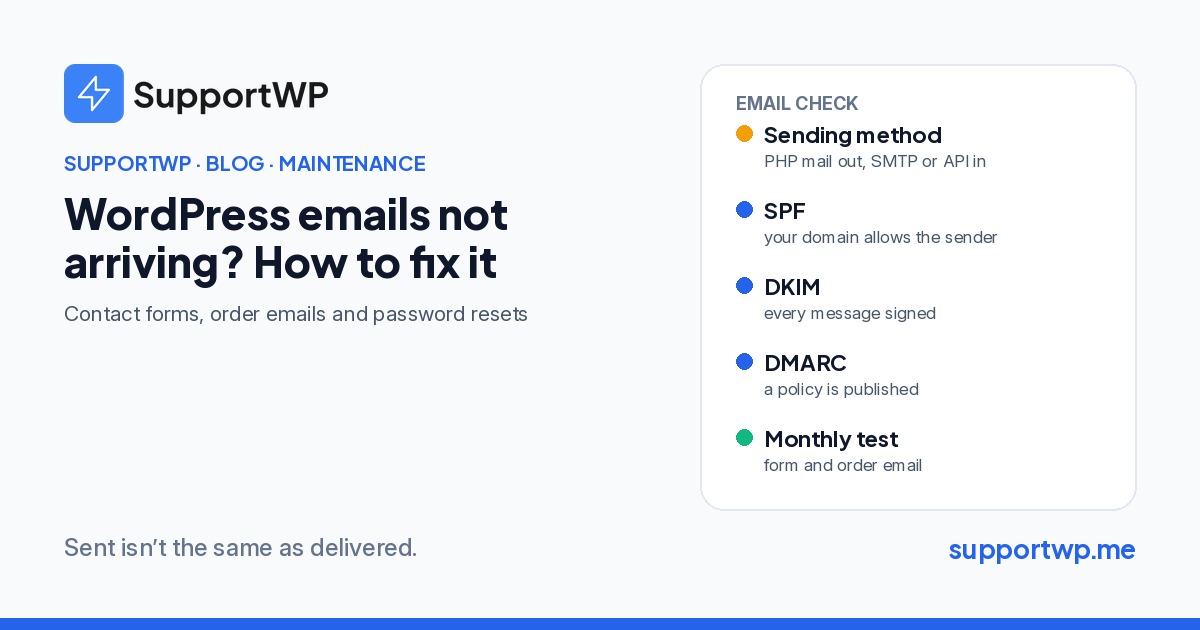
WordPress emails not arriving? How to fix contact form and order emails
One of the quietest problems on a WordPress site is email that never arrives. The contact form shows its green "Thank you" message. WooCommerce marks the order confirmation as sent. The password reset says "Check your email". And the message never reaches anyone, or it lands in spam where nobody looks.
Nothing on the site looks broken, so it can go on for weeks. The first sign is usually a customer asking why they never got their receipt, or a sales lead who gave up because nobody answered the form. This article explains why it happens and the setup we use on every site we look after.
Why WordPress email goes missing
WordPress sends through the server by default. Out of the box, WordPress uses the web server's own mail function to send email. Most web servers are not set up to be trusted email senders. Some hosts limit or block that function entirely, and messages that do go out often have nothing to prove they really come from your domains.
Mailbox providers check who is allowed to send. Gmail, Outlook and other providers look at whether the server sending the message is authorised for the domain in the "From" address, and whether the message is signed. Since 2024, Gmail and Yahoo have required senders to authenticate their mail, with stricter rules for anyone sending in bulk. Unauthenticated mail from a shared web server is exactly what those checks are designed to catch.
The "From" address doesn't match the domain. A common mistake is setting the form's "From" address to the visitor's email, or to a Gmail address. Your server is not allowed to send as gmail.com, so the message fails authentication and gets filtered.
Nobody tests it after changes. A new form plugin, a hosting move, a DNS change or a new email provider for the office can all break sending without anyone noticing.
Step 1: Send through SMTP or an email API
Instead of the server's mail function, connect WordPress to a proper sending service. That can be your business mailbox provider (Google Workspace or Microsoft 365) over SMTP, or a transactional email service such as Postmark, Amazon SES, Mailgun, Brevo or SendGrid. A plugin such as WP Mail SMTP, FluentSMTP or Post SMTP handles the connection.
For shops and busy sites, we prefer a transactional service. It is built for order and account emails, keeps a delivery log, and keeps those messages separate from the team's everyday mail.
Step 2: Set up SPF, DKIM and DMARC
These are three DNS records on your domain. Together they tell mailbox providers that your emails are genuine.
SPF lists the services allowed to send email for your domain. If you add a sending service, it must be included in your SPF record. A domain should have only one SPF record, so add to the existing one rather than creating a second.
DKIM signs every message with a key published in your DNS, so the receiver can check the message wasn't changed and really came from you. Your sending service gives you the records to add.
DMARC tells receivers what to do when a message fails those checks, and sends you reports about it. Start with a monitoring policy (p=none), read the reports for a few weeks, and only then move to quarantine or reject once you are sure all your legitimate senders pass.
Step 3: Get the addresses right
Send from an address on your own domain, such as noreply@ or orders@, and make sure it matches the domain you authenticated. If you want replies to go to the visitor who filled in the form, use the "Reply-To" field for their address, not "From". Most form plugins have a setting for this.
Step 4: Log and test
Turn on email logging in your SMTP plugin or sending service, so you can see what was sent, when and whether it was accepted. Then test properly: submit every important form, place a test order, request a password reset, and check that each message arrives in the inbox, not in spam. A tool such as mail-tester.com shows whether your authentication passes and what might be pulling your score down.
Do it again after any change to forms, plugins, hosting or DNS, and at least once a month even when nothing has changed.
A quick checklist
Sending: WordPress sends through SMTP or an email API, not the server's mail function.
DNS: one SPF record that includes your sending service, DKIM records published, a DMARC record in place.
Addresses: "From" on your own domain, visitor address in "Reply-To".
Visibility: email logging switched on.
Testing: forms, order emails and password resets checked monthly and after every change.
The short version
"Sent" in WordPress only means the site handed the message over. It doesn't mean anyone received it. Send through a proper service, authenticate your domain with SPF, DKIM and DMARC, keep the "From" address on your domain, and test the emails that matter every month.
Email checks are part of every SupportWP maintenance plan, alongside 24/7 monitoring, safe updates and security. If you're not sure your site's emails are arriving, our free website audit is a good place to start.